Map SophMate Roles and Permissions Before Team Rollout
Map administrators, editors, marketers, support users, agency operators, and developers to SophMate capabilities before opening AI workflows to a wider team.
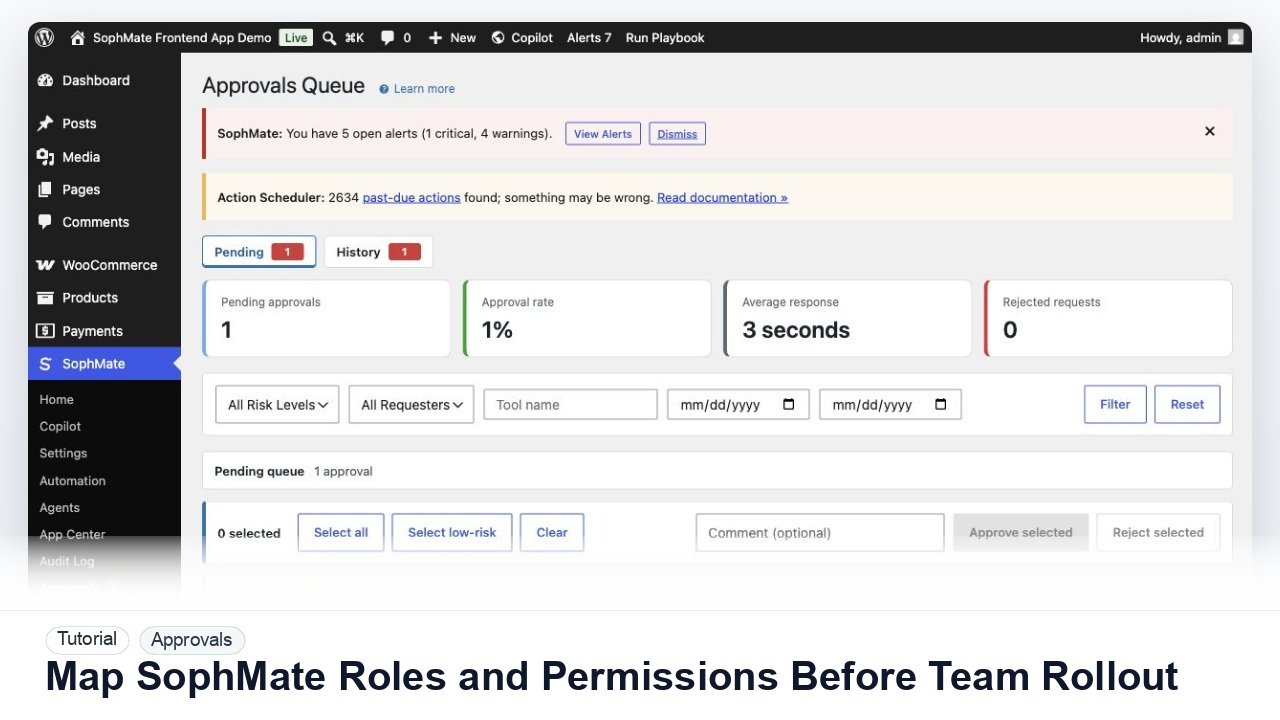
Map administrators, editors, marketers, support users, agency operators, and developers to SophMate capabilities before opening AI workflows to a wider team.
By the end of this tutorial, you will know how to use SophMate for SophMate roles and permissions while keeping the work reviewable inside WordPress.
A site owner wants several team members to use SophMate, but not everyone should approve coupons, change products, publish visuals, or manage provider keys.
Use this tutorial to evaluate whether SophMate is viable for teams, not just a single administrator. The key signal is whether read, draft, approve, execute, provider, budget, diagnostics, privacy, workflow execution, and custom-tool access can be reviewed separately.
Map these team roles to SophMate capabilities. Separate read, draft, approve, execute, provider, budget, diagnostics, privacy, workflow execution, and custom-tool permissions, then flag risky access before rollout.
The tutorial image shows the Approvals queue context because this workflow depends on understanding risk, reviewer ownership, pending plans, and execution status before changes affect the site.
Do not bulk approve mixed-risk plans. Separate commerce, customer, content, and system changes before approving.
Write down administrators, store managers, support users, marketers, editors, designers, agency operators, and developers. Avoid assigning permissions to vague team labels.
A user who can ask Copilot questions does not automatically need approval, execution, provider, budget, or diagnostics access. Map each capability separately.
Keep provider keys, budgets, system tools, high-risk approvals, privacy operations, and workflow pause controls with trusted administrators or named owners.
Sign in as a non-admin or staging user and confirm the visible SophMate screens match the intended role. Hidden capability errors should be fixed before launch.
Use audit logs and pending plans to see whether users need more access, less access, better playbooks, or clearer escalation rules.
The approval workflow is successful when reviewers can explain the affected records, risk, diff, decision, execution result, and audit trail without reconstructing the process from memory.
If proposed fields are wrong, reject or revise the plan before execution. If execution already ran, use the audit trail and affected records to prepare a manual correction or rollback plan.
Document each role, allowed modules, draft permissions, approval permissions, execution permissions, budget access, provider access, diagnostics access, and the person responsible for reviewing access after rollout.
The site administrator owns the permission map. Review it before rollout, after staff changes, after adding custom tools or agents, and during the monthly governance review.
Escalate when a user can see high-risk modules unexpectedly, cannot access a module needed for their job, or when role changes would grant approval, execution, provider, budget, privacy, or system-tool access.
Bulk approval is safest for similar low-risk plans with the same owner and rollback pattern. Mixed commerce, customer, content, visual, and settings changes should be reviewed separately.
No. SophMate should make the work easier to draft, inspect, approve, and repeat. Human review remains necessary when output affects customers, money, published content, privacy, settings, or workflow execution.
Record the owner, input scope, access boundary, approval point, failure modes tested, evidence location, monitoring window, and rollback or stop path.
Apply the smallest permission change first, then ask one user in each role to verify the SophMate screens they can see and the approvals they cannot bypass.
Next step
Review the SophMate listing for current package details, screenshots, compatibility notes, and license terms.
Related
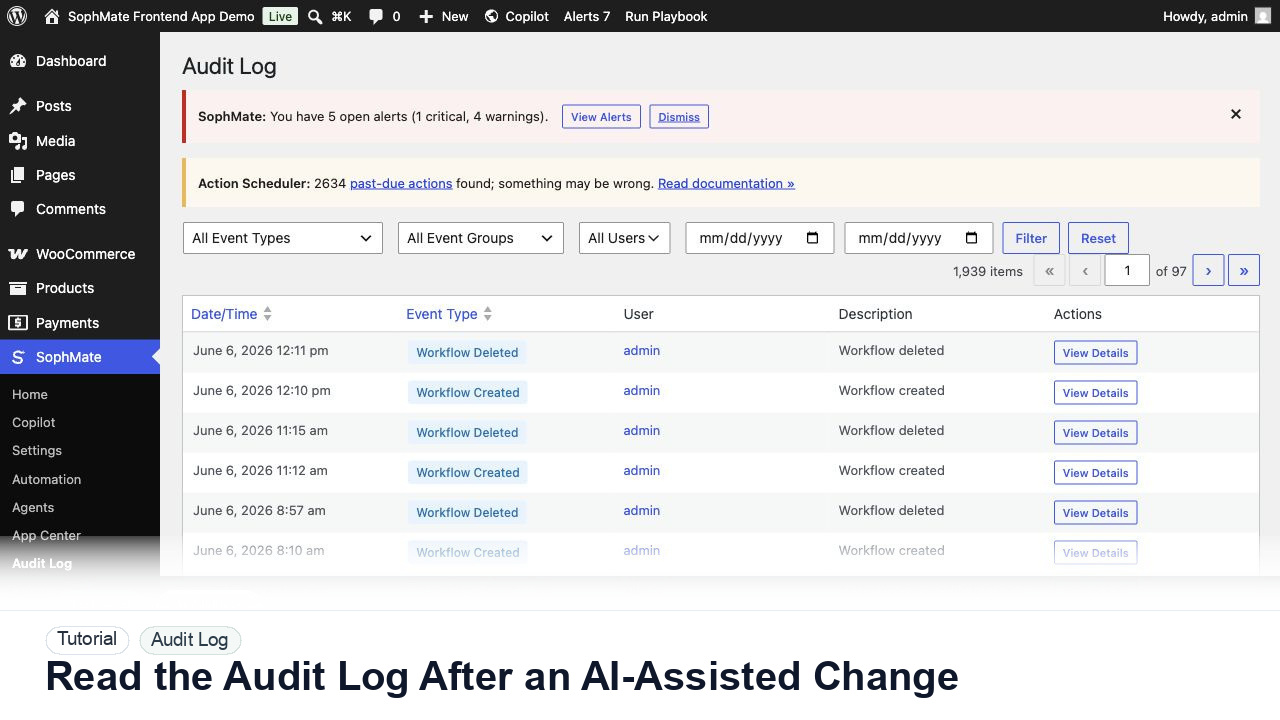
Use the SophMate Audit Log to verify who proposed, approved, executed, failed, retried, exported, or purged AI-assisted work.
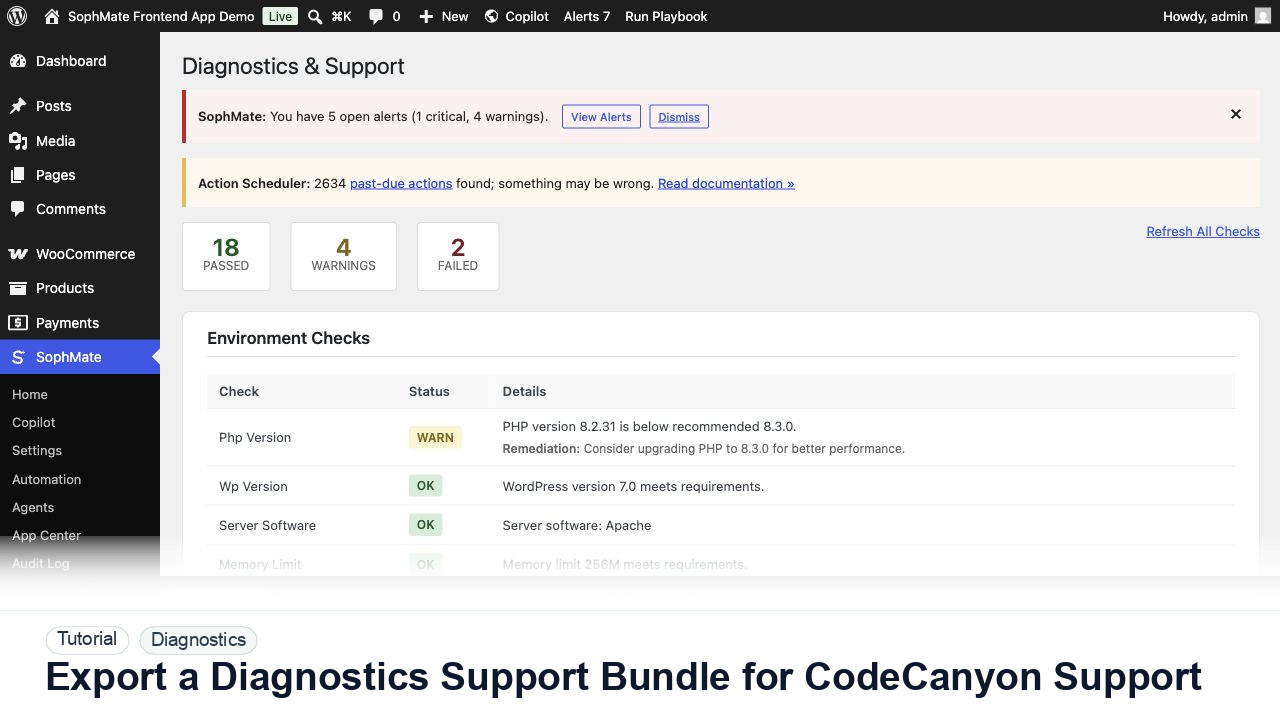
Use SophMate Diagnostics and Support to check environment status, provider connectivity, PHP extensions, plugin inventory, and support bundle data before contacting support.
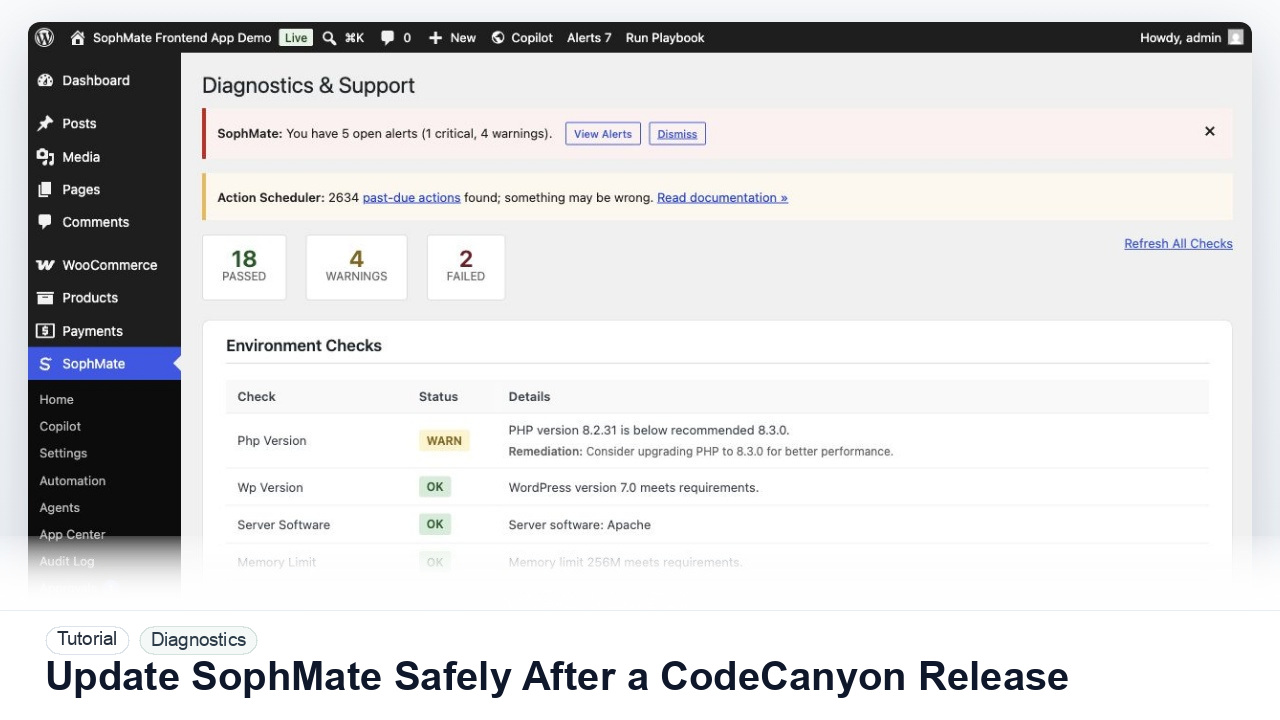
Prepare backups, staging checks, diagnostics, provider tests, workflow pauses, and rollback notes before updating SophMate from a CodeCanyon release.