Export a Diagnostics Support Bundle for CodeCanyon Support
Use SophMate Diagnostics and Support to check environment status, provider connectivity, PHP extensions, plugin inventory, and support bundle data before contacting support.
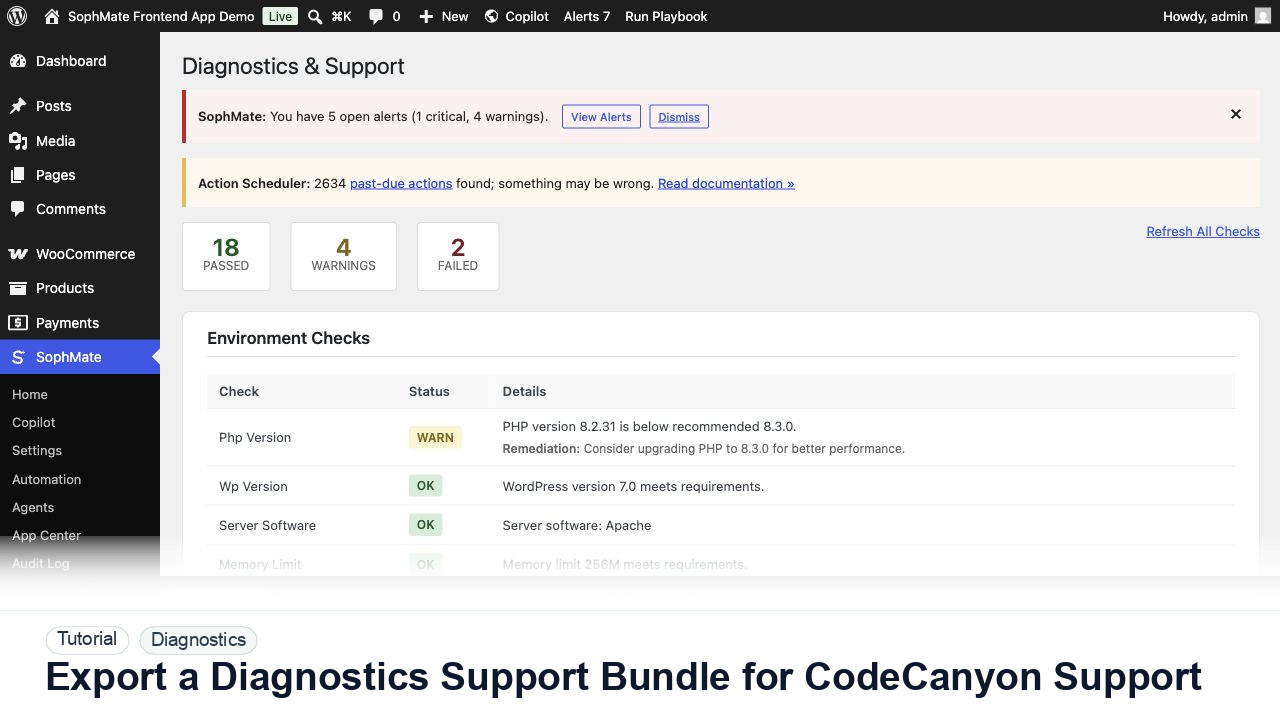
Use SophMate Diagnostics and Support to check environment status, provider connectivity, PHP extensions, plugin inventory, and support bundle data before contacting support.
By the end of this tutorial, you will know how to use SophMate for SophMate diagnostics support while keeping the work reviewable inside WordPress.
The site owner sees a provider or deployment issue and wants a clear report for support without exposing secrets.
Use this tutorial to evaluate whether SophMate support evidence is actionable and safe to share. Buyers should expect exact screens, timestamps, environment facts, failed checks, reproduction steps, and redaction notes.
Prepare support-safe diagnostics for this issue. Capture exact screen, timestamp, environment, failed check, reproduction steps, and redaction notes before contacting support.
The tutorial image shows Diagnostics and Support context where environment checks, connectivity, plugin inventory, extensions, and support reports are prepared.
Use these records to explain behavior without disclosing secrets or unnecessary customer data.
Go to SophMate > Diagnostics and review environment checks, connectivity checks, Image Studio status, plugin inventory, theme details, and PHP extensions.
Refresh the diagnostics if the issue just happened. Fresh data makes support faster and avoids chasing resolved errors.
Use Copy Report for a quick text summary. Review the content before pasting it into a support request.
Use the bundle option for deeper troubleshooting. Confirm what is included and avoid attaching unrelated site data.
Support reports are strongest when paired with exact steps, expected behavior, actual behavior, and the affected SophMate screen.
The diagnostics workflow is successful when support can see the environment state, failed check, and reproduction steps without receiving provider keys or unnecessary private data.
If evidence is incomplete or unsafe to share, stop escalation until redaction, timestamps, environment details, and reproduction steps are corrected.
Document the event chain, check results, support-safe report, reproduction steps, redaction review, and owner for the next action.
The site administrator or operations lead should review these records after incidents, before support contact, and during governance checks.
Escalate when support evidence is incomplete, redaction is uncertain, or the event chain cannot explain what happened.
Send exact timestamps, affected screen, environment details, failed check, reproduction steps, and redacted diagnostics. Do not send provider keys, server credentials, purchase codes, or unrelated customer records.
No. SophMate should make the work easier to draft, inspect, approve, and repeat. Human review remains necessary when output affects customers, money, published content, privacy, settings, or workflow execution.
Record the owner, input scope, access boundary, approval point, failure modes tested, evidence location, monitoring window, and rollback or stop path.
Fix one failing check, rerun diagnostics, and keep the before/after result with the support-safe report so the next owner can verify the change.
Next step
Review the SophMate listing for current package details, screenshots, compatibility notes, and license terms.
Related
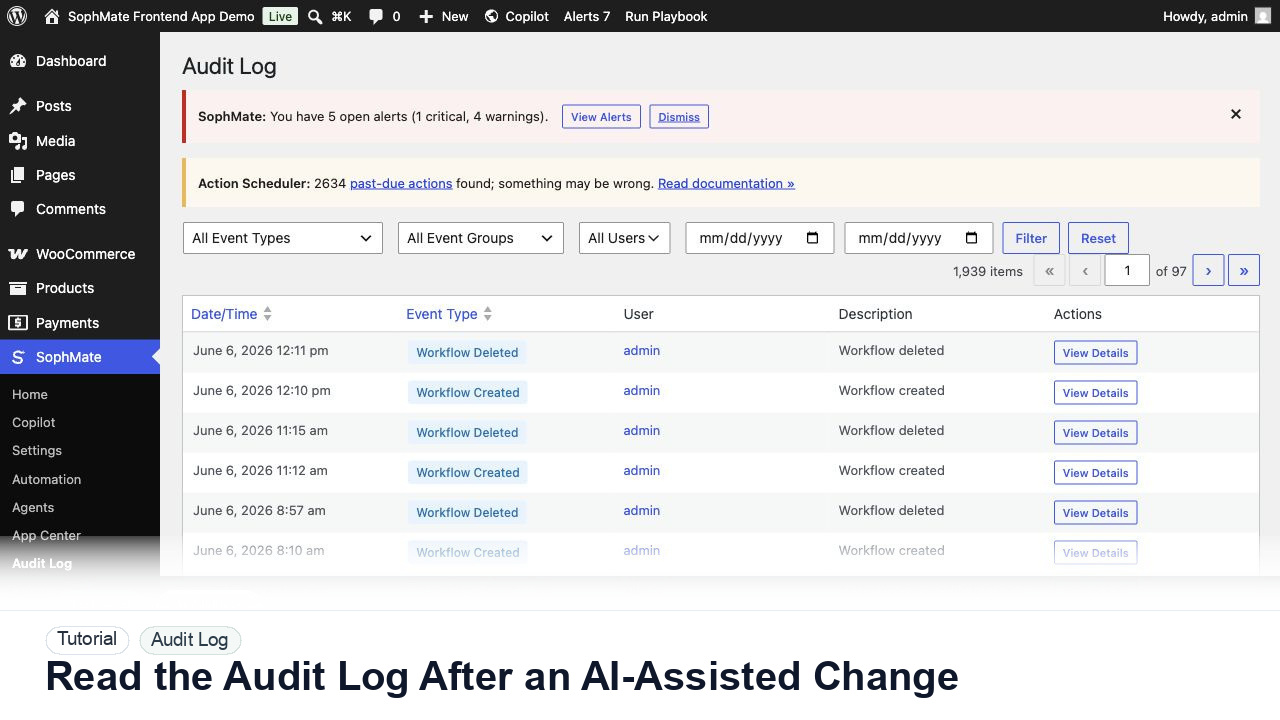
Use the SophMate Audit Log to verify who proposed, approved, executed, failed, retried, exported, or purged AI-assisted work.
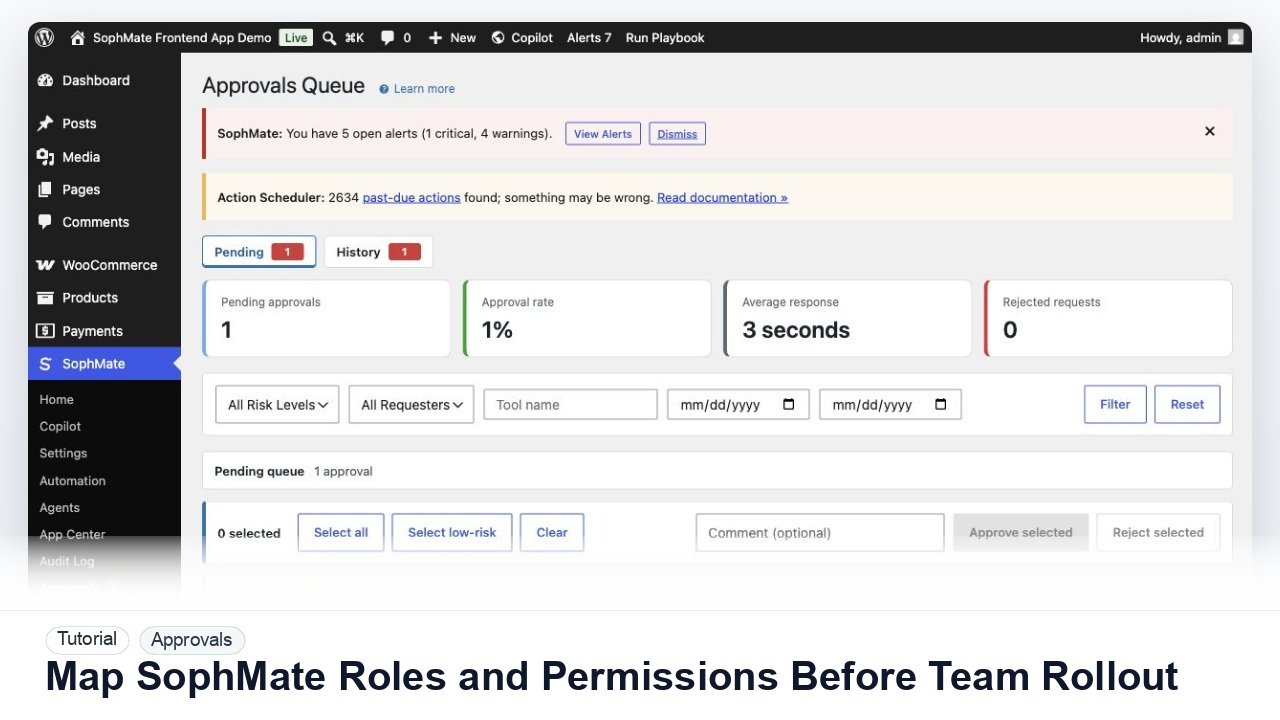
Map administrators, editors, marketers, support users, agency operators, and developers to SophMate capabilities before opening AI workflows to a wider team.
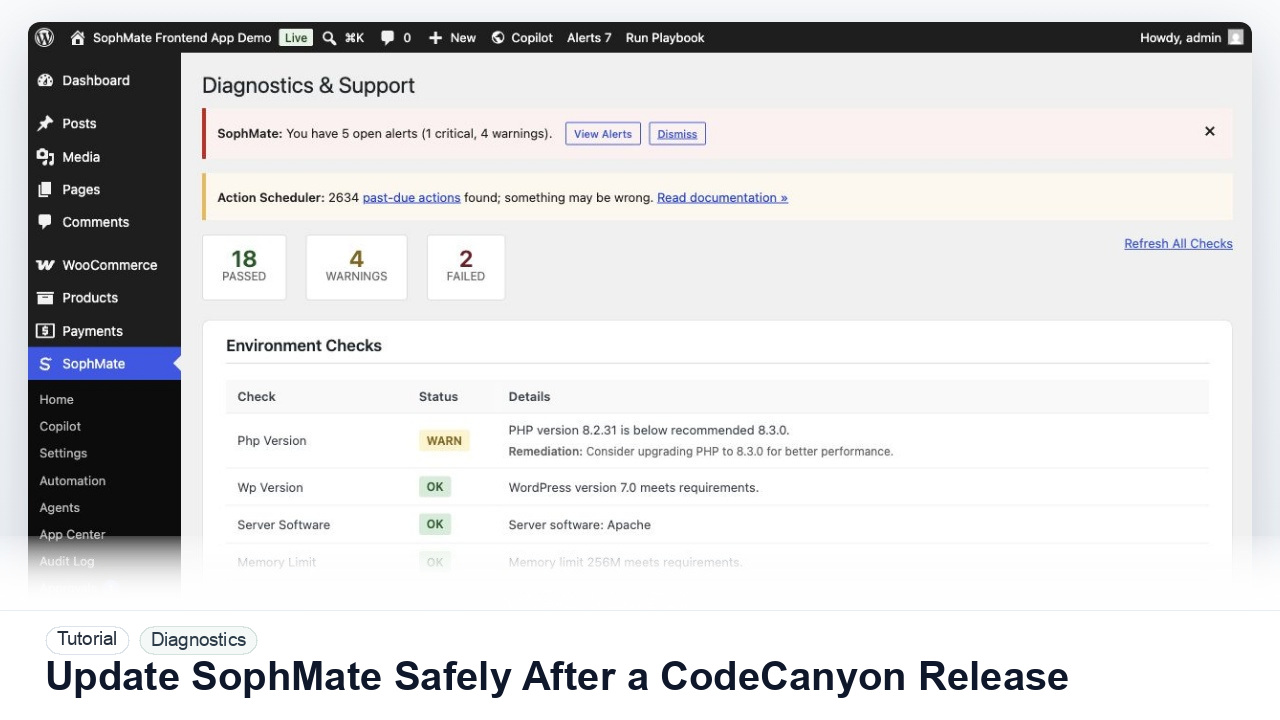
Prepare backups, staging checks, diagnostics, provider tests, workflow pauses, and rollback notes before updating SophMate from a CodeCanyon release.