Theme Assistant 6 min read Apr 28, 2026

Make a Reversible CSS Change with Theme Assistant

Use Theme Assistant to request a CSS refinement, inspect the preview, review generated CSS, and keep the change reversible through history.
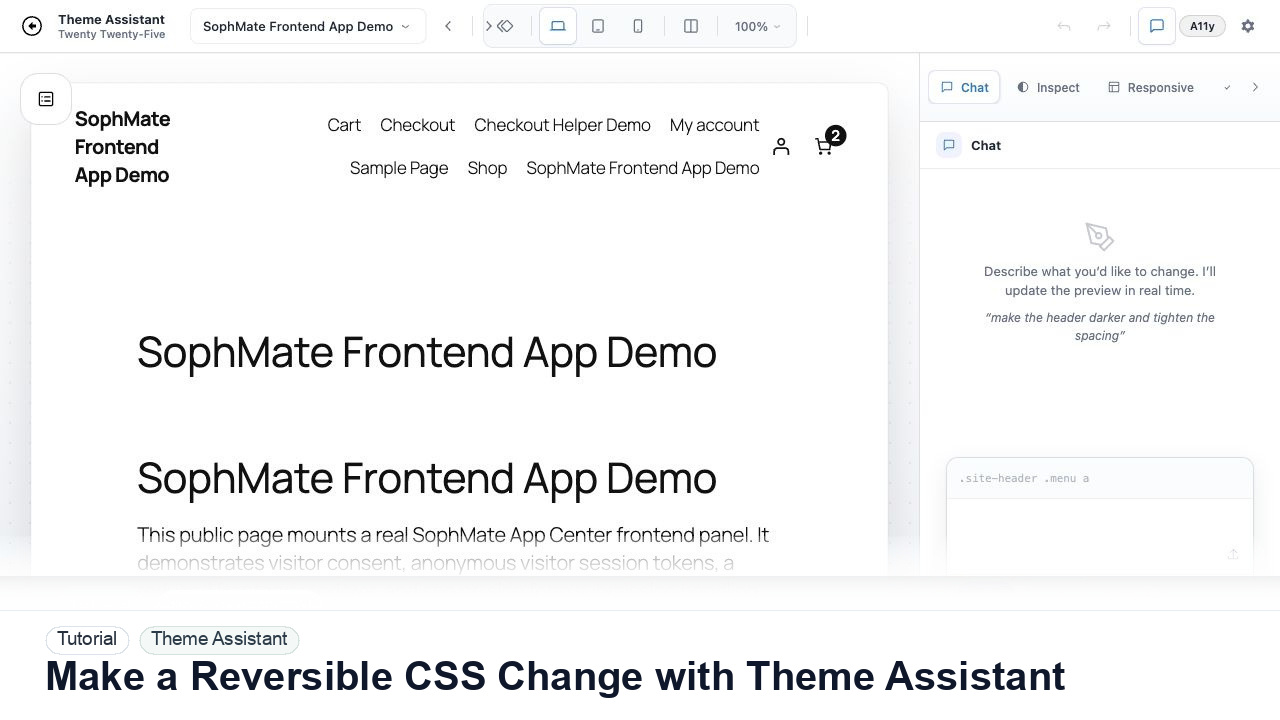
SophMate tutorial image for Make a Reversible CSS Change with Theme Assistant showing the related wp-admin workflow context.

Outcome

By the end of this tutorial, you will know how to use SophMate for AI WordPress CSS editor while keeping the work reviewable inside WordPress.

Scenario

A designer wants the homepage call-to-action spacing and contrast improved without changing templates or theme structure.

Buyer evaluation note

Use this tutorial to evaluate whether SophMate can support client-facing design work without hiding production risk. Buyers should look for target components, selector scope, responsive checks, accessibility review, CSS history, and rollback behavior.

When not to use this workflow

  • Do not use Theme Assistant for PHP template changes, checkout logic, plugin UI, or structural theme development.
  • Do not publish CSS that has not been checked on mobile, desktop, logged-out, checkout, account, cache, and accessibility states.
  • Do not use this workflow to bypass the normal owner, reviewer, or approval path for production changes.
  • Defer the workflow when the source data, permission boundary, rollback owner, or customer impact cannot be explained.

Example operator request

Propose a scoped Theme Assistant change for this page. Name the target component, selector risk, responsive checks, accessibility concerns, CSS history label, and rollback path before publishing.

What the image shows

The tutorial image shows Theme Assistant context: live preview, design controls, responsive review, and presentation-oriented workflow areas for visual changes.

Before you begin

  • Identify the target page, component, selector or block family, desktop/mobile states, cache behavior, and rollback owner before generating CSS.
  • Prepare screenshots or public URLs that do not expose customer accounts, checkout payment data, private staging links, or client-only design files.
  • Confirm SophMate is active, diagnostics do not show blocking failures, and the current user role can open the relevant SophMate module.
  • Check provider, budget, privacy, and approval settings before asking SophMate to draft or execute work.
  • Keep customer data, API keys, purchase codes, and private credentials out of prompts unless this workflow explicitly requires and permits that context.

Access and data boundary

  • Use public page URLs, component selectors, screenshots, and design constraints that are safe for design review.
  • Avoid exposing private wp-admin screens, customer account data, checkout payment details, or client-only design files in prompts or presentations.
  • Use the least-privileged SophMate role that can complete the review, and keep administrator-only access limited to setup, provider, billing, diagnostics, and high-risk approval work.
  • Prefer record IDs, short excerpts, and redacted screenshots over full customer records, payment details, provider keys, purchase codes, or raw server logs.

Guardrail

Use scoped CSS, responsive checks, accessibility review, and history notes before publishing visual changes.

Common mistakes to avoid

  • Approving CSS after checking only the desktop preview.
  • Using broad selectors that affect unrelated templates, checkout states, or mobile layouts.
  • Skipping accessibility notes because the change looks visually small.

Step 1: Open the target page

Go to SophMate > Theme Assistant and select the page that needs refinement. Keep the preview on the same route a visitor would see.

Step 2: Describe the change in CSS terms

Ask for a visual refinement such as spacing, contrast, alignment, or typography. Avoid asking for structural template changes when CSS is enough.

Step 3: Use a selector when you know it

If you can identify the target selector, provide it. Selector hints reduce the chance of broad CSS that affects unrelated sections.

Step 4: Review the preview and generated CSS

Check the live preview at desktop, tablet, and mobile widths. Read the CSS before proposing or applying the change.

Step 5: Keep history useful

Name the change and leave a note. If the result is not right, use Theme Assistant history or a revert proposal rather than stacking more unclear CSS.

Review checklist

  • The change is CSS-only.
  • Mobile preview is reviewed.
  • The history note explains the design intent.

Production readiness

  • Review desktop, tablet, mobile, logged-out, checkout-adjacent, account, and cached page states before publishing CSS.
  • Confirm the CSS selector scope, accessibility notes, and history label are specific enough for rollback.
  • Run the workflow first on a narrow, low-risk record or page before expanding scope.
  • Confirm the reviewer, approval rule, and evidence location before any production-changing action runs.

Failure modes to test

  • Test broad selectors, mobile overflow, keyboard focus issues, reduced-motion behavior, cache differences, checkout/account impact, and rollback from history.
  • Confirm visual failures can be reverted without stacking unrelated CSS fixes.
  • Test the path where the user lacks permission, required context is missing, or the reviewer rejects the result.
  • Confirm the failed state leaves an audit record, visible owner, and clear next action instead of a silent or ambiguous outcome.

Success signal

The Theme Assistant workflow is successful when the change is scoped, reviewed at key breakpoints, accessibility concerns are documented, and the team can revert or explain the CSS history.

Post-run monitoring

  • Recheck affected pages after cache clears, theme updates, logged-out review, and mobile viewport testing.
  • Watch accessibility notes, layout drift, checkout/account side effects, and client presentation feedback.
  • Review the audit log, diagnostics, and affected WordPress records shortly after the first run.
  • Record any confusing output, missing source context, permission issue, cost spike, or reviewer correction before repeating the workflow.

Safe expansion criteria

  • Desktop, tablet, mobile, accessibility, cache, logged-out, and revenue-critical states pass review.
  • The CSS history entry is specific enough to revert without searching through unrelated changes.
  • The first run has a documented owner, evidence, review result, and stop path.
  • A second operator can repeat the workflow from the notes without relying on hidden context.

Rollback or stop path

If visual output harms layout, accessibility, or checkout-adjacent states, revert the named CSS change from history and keep the module paused until the affected pages are rechecked.

What to document

Document target page, selector or component family, desktop/tablet/mobile checks, accessibility notes, CSS history label, and approval status.

Owner and cadence

A designer owns visual intent, while the site owner or developer owns production impact. Review every meaningful CSS change before publishing.

Escalate when

Escalate when CSS affects checkout, account, accessibility, mobile navigation, or theme structure beyond the intended visual scope.

Common questions

Can Theme Assistant publish CSS after one good preview?

Do not publish from one preview alone. Check mobile, desktop, logged-out state, accessibility, cache behavior, checkout/account impact, and rollback history first.

Does this workflow remove the need for human review?

No. SophMate should make the work easier to draft, inspect, approve, and repeat. Human review remains necessary when output affects customers, money, published content, privacy, settings, or workflow execution.

What should be documented before expanding the workflow?

Record the owner, input scope, access boundary, approval point, failure modes tested, evidence location, monitoring window, and rollback or stop path.

Next action

Save one scoped draft with desktop, mobile, accessibility, cache, and rollback notes before asking a client or site owner to approve the visual change.

Next step

Bring this workflow into your WordPress site

Review the SophMate listing for current package details, screenshots, compatibility notes, and license terms.

View on CodeCanyon

Related

More from Theme Assistant

Pro