Create a Client Presentation from Theme Assistant Changes
Package Theme Assistant design changes into a client presentation with before-and-after notes, responsive findings, accessibility concerns, and approval status.
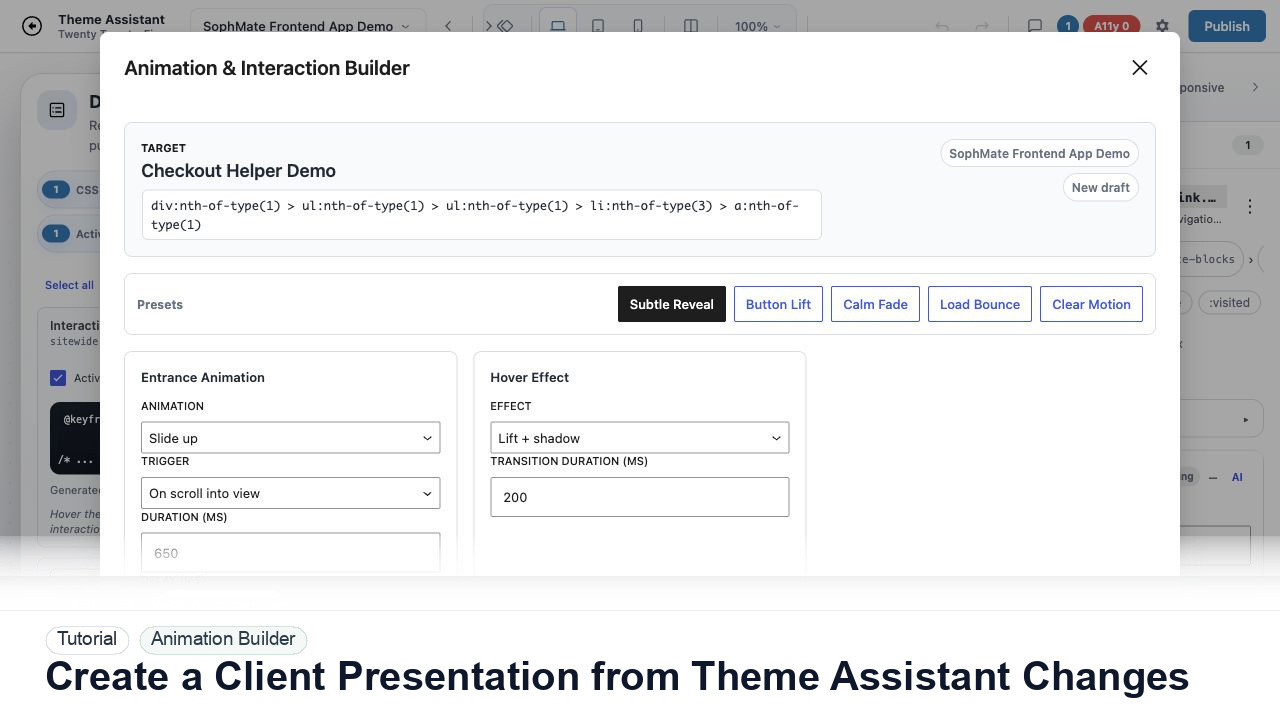
Package Theme Assistant design changes into a client presentation with before-and-after notes, responsive findings, accessibility concerns, and approval status.
By the end of this tutorial, you will know how to use SophMate for Theme Assistant client presentation while keeping the work reviewable inside WordPress.
An agency has drafted homepage and product-page refinements and needs a concise client review before applying them.
Use this tutorial to evaluate whether SophMate can support client-facing design work without hiding production risk. Buyers should look for target components, selector scope, responsive checks, accessibility review, CSS history, and rollback behavior.
Propose a scoped Theme Assistant change for this page. Name the target component, selector risk, responsive checks, accessibility concerns, CSS history label, and rollback path before publishing.
The tutorial image shows Theme Assistant context: live preview, design controls, responsive review, and presentation-oriented workflow areas for visual changes.
Use scoped CSS, responsive checks, accessibility review, and history notes before publishing visual changes.
Separate header, hero, product card, checkout, and footer changes. Clients understand outcomes better than CSS selectors.
Use preview snapshots or notes that describe what changed visually. Include mobile findings when the change affects layout.
Add contrast, spacing, tap target, and hierarchy notes. This turns the presentation into a decision aid, not just a cosmetic review.
Show whether each change is draft, proposed, approved, or applied. Clients should know what is waiting for their decision.
End with the exact approval, revision, or implementation request needed from the client.
The Theme Assistant workflow is successful when the change is scoped, reviewed at key breakpoints, accessibility concerns are documented, and the team can revert or explain the CSS history.
If visual output harms layout, accessibility, or checkout-adjacent states, revert the named CSS change from history and keep the module paused until the affected pages are rechecked.
Document target page, selector or component family, desktop/tablet/mobile checks, accessibility notes, CSS history label, and approval status.
A designer owns visual intent, while the site owner or developer owns production impact. Review every meaningful CSS change before publishing.
Escalate when CSS affects checkout, account, accessibility, mobile navigation, or theme structure beyond the intended visual scope.
Do not publish from one preview alone. Check mobile, desktop, logged-out state, accessibility, cache behavior, checkout/account impact, and rollback history first.
No. SophMate should make the work easier to draft, inspect, approve, and repeat. Human review remains necessary when output affects customers, money, published content, privacy, settings, or workflow execution.
Record the owner, input scope, access boundary, approval point, failure modes tested, evidence location, monitoring window, and rollback or stop path.
Save one scoped draft with desktop, mobile, accessibility, cache, and rollback notes before asking a client or site owner to approve the visual change.
Next step
Review the SophMate listing for current package details, screenshots, compatibility notes, and license terms.
Related
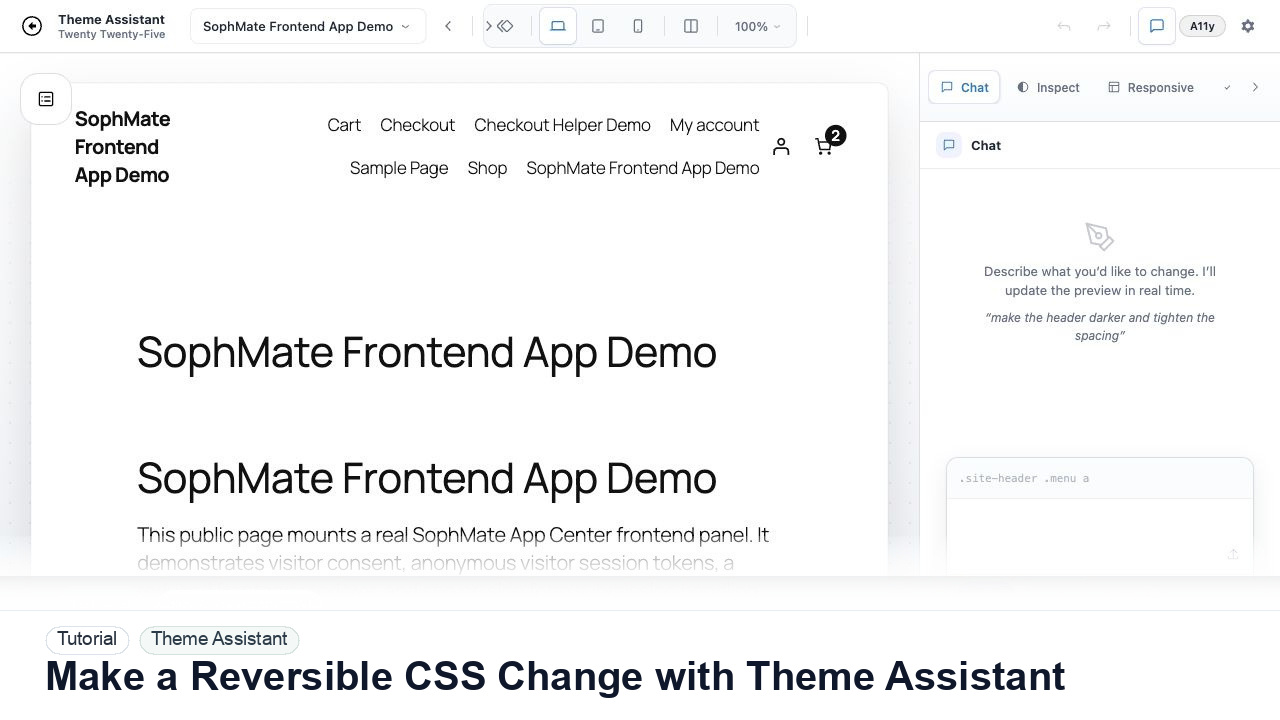
Use Theme Assistant to request a CSS refinement, inspect the preview, review generated CSS, and keep the change reversible through history.
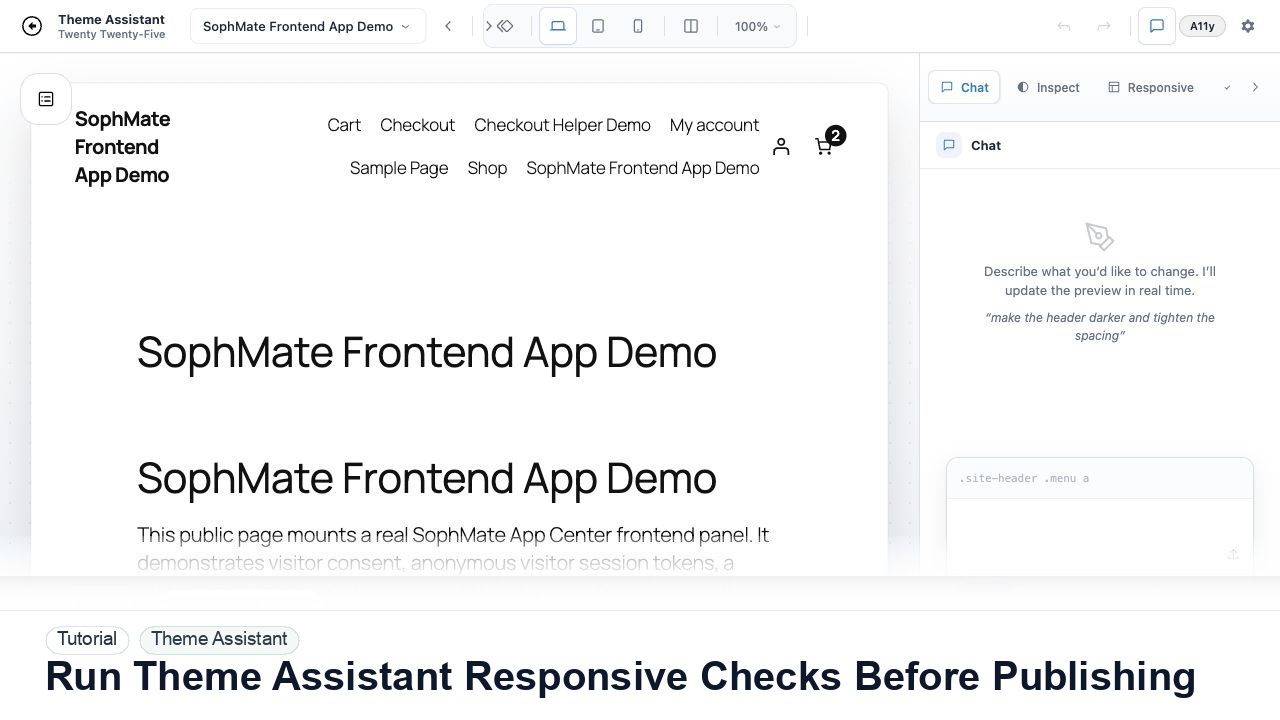
Switch Theme Assistant between desktop, tablet, and mobile views to catch spacing, navigation, overflow, and CTA issues before publishing CSS.
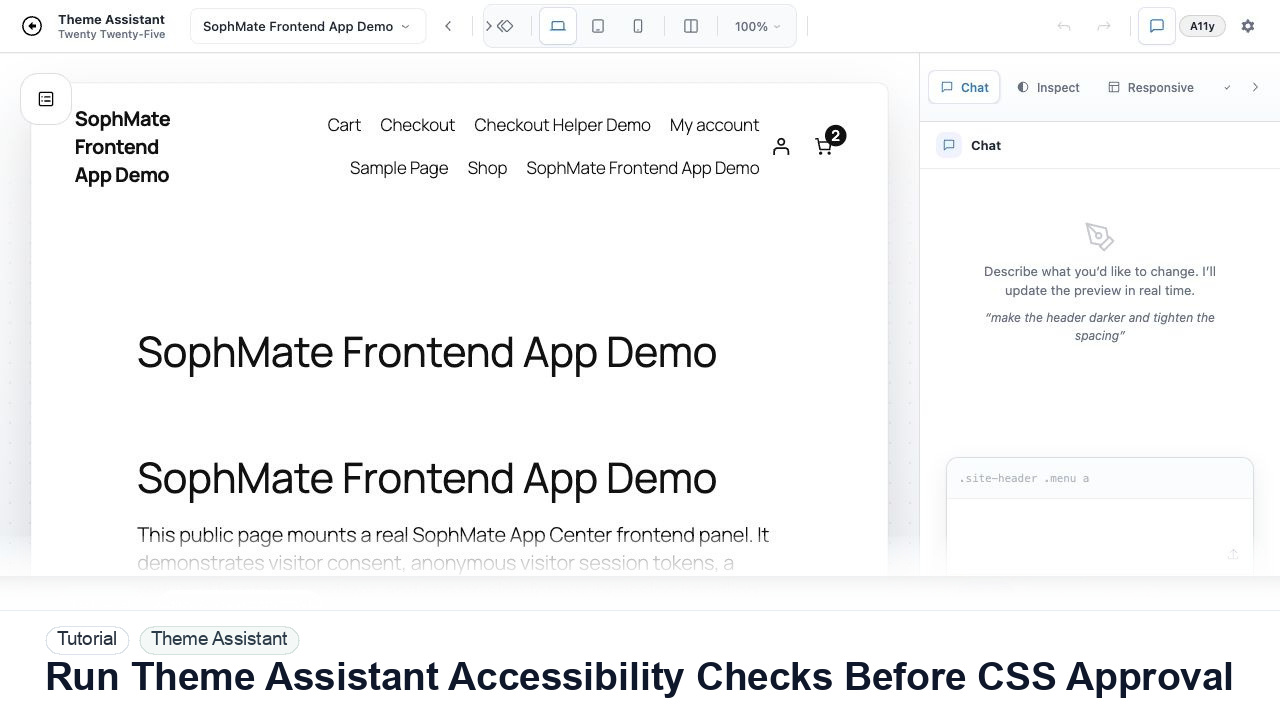
Use Theme Assistant accessibility checks to review contrast, hierarchy, spacing, and tap-target concerns before approving AI-generated CSS.