Connect an App Center Frontend Panel Safely
Use SophMate App Center to evaluate a visitor-facing app panel, review capabilities, and keep frontend behavior separate from core plugin updates.
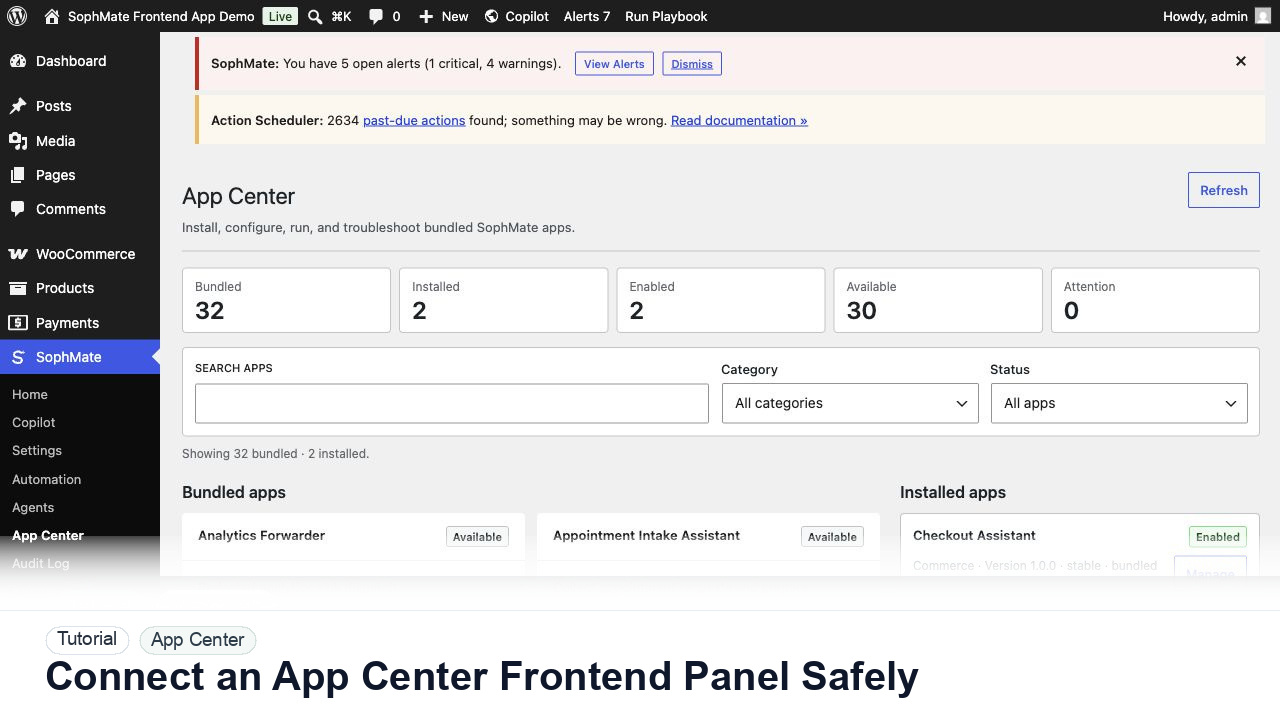
Use SophMate App Center to evaluate a visitor-facing app panel, review capabilities, and keep frontend behavior separate from core plugin updates.
By the end of this tutorial, you will know how to use SophMate for WordPress AI app center while keeping the work reviewable inside WordPress.
A developer wants to expose a storefront survey widget powered by SophMate while keeping roles, data capture, and app permissions visible.
Use this tutorial to evaluate whether SophMate visitor-facing apps expose permissions and failure states clearly. The adoption signal is reviewed manifests, scoped data capture, consent behavior, job-failure handling, and audit records.
Review this app or frontend panel before activation. Check manifest permissions, data captured, visitor fallback states, job failures, consent behavior, and audit records.
The tutorial image shows App Center context where installed apps, bundled apps, frontend panels, capability grants, and custom app registration are reviewed.
Do not expose custom capabilities to visitors, agents, or workflows until roles, permissions, schemas, and risk level are clear.
Check app name, channel, roles, capability grants, frontend panel definitions, data retention, and job behavior before installation.
Visitor-facing apps should collect only the data they need and should state whether they use anonymous session tokens or consent.
Start with a non-critical page or staging route. Avoid adding an untested app directly to checkout or account pages.
Use a browser session as a visitor and verify render, consent behavior, form submission, and fallback states.
After launch, review app job failures, privacy events, and any integration warnings before expanding placement.
The App Center workflow is successful when the app renders with a safe fallback, permissions match the manifest, visitor data handling is understood, and jobs leave useful operational records.
If a custom capability behaves unexpectedly, disable the app or tool, revoke visitor/agent access, preserve audit evidence, and retest schema plus permissions.
Document manifest or tool schema, permissions, data captured, risk classification, fallback behavior, and audit fields.
The developer owns schema and integration behavior, while the administrator owns permission, risk, and visitor-facing placement.
Escalate when custom capabilities read sensitive data, write WordPress records, call external services, or expose visitor-facing behavior.
It needs a clear schema or manifest, least-privilege permissions, negative tests, fallback states, audit fields, and an owner who can disable it quickly.
No. SophMate should make the work easier to draft, inspect, approve, and repeat. Human review remains necessary when output affects customers, money, published content, privacy, settings, or workflow execution.
Record the owner, input scope, access boundary, approval point, failure modes tested, evidence location, monitoring window, and rollback or stop path.
Enable the app on the smallest useful surface, verify permission-denied and provider-unavailable states, then review audit records before expanding placement.
Next step
Review the SophMate listing for current package details, screenshots, compatibility notes, and license terms.
Related
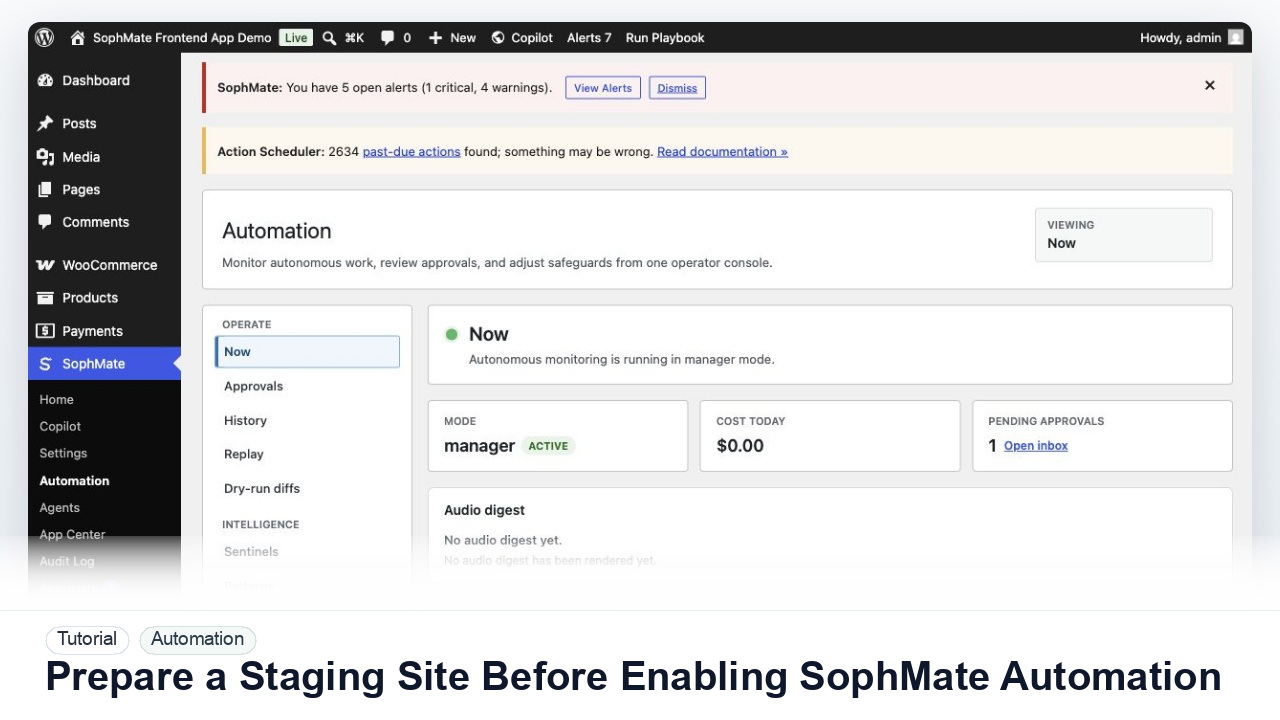
Use a staging WordPress site to test SophMate workflows, watchers, agents, approvals, and kill switches before production rollout.
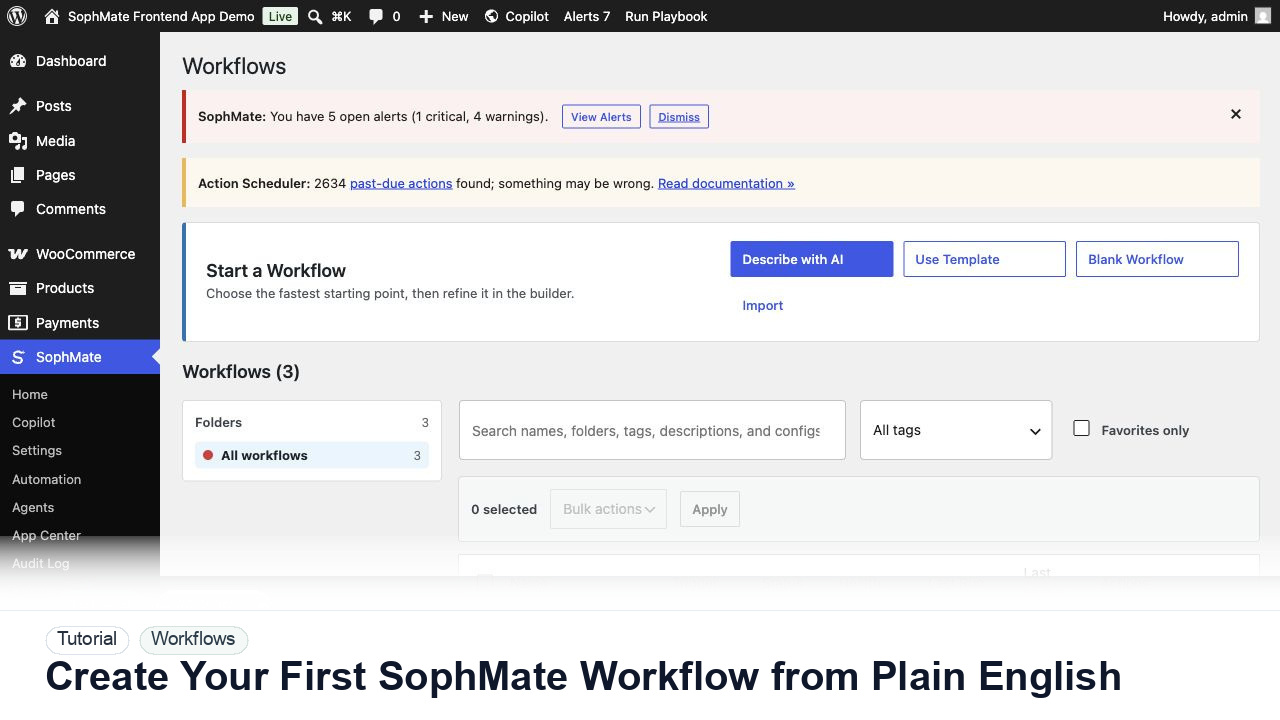
Use SophMate Workflows Describe with AI to turn a plain-English operations idea into a workflow draft with triggers, steps, and review notes.
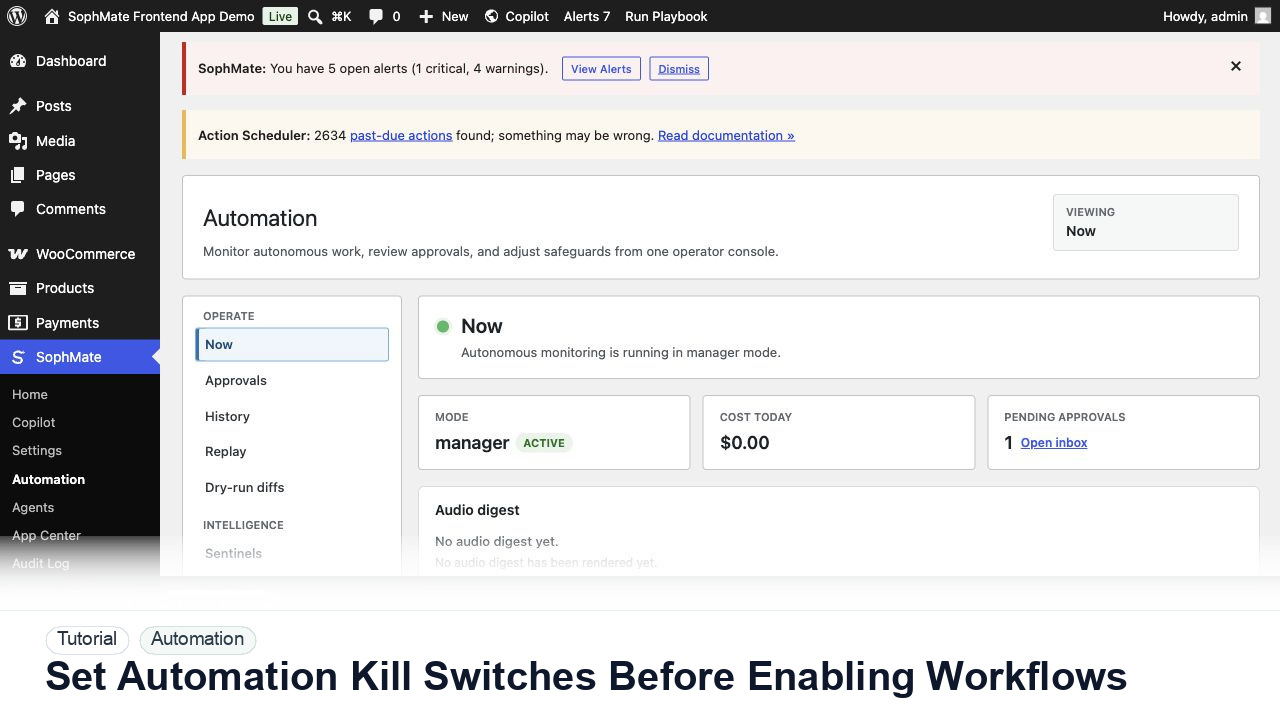
Configure SophMate workflow kill switches and ownership rules before enabling workflows that can affect WooCommerce or WordPress operations.